
Meeting Schedules
The Meeting Schedules panel provides quick access to creating, opening, and managing schedules in Meeting Schedule Assistant.
From here, you can:
- launch the Meeting Editor
- create a new schedule for a chosen date range
- open recently used schedules
- work with Foreign‑Language Group settings (when your congregation supports one)

Figure 7. The Meeting Schedules panel.
Creating a New Schedule
Click Create to open the Meeting Editor with everything prepared for your selected date range.
You can also create a new schedule from the File menu.
Editing an Existing Schedule
Click Edit to choose a schedule to open.
The selected file loads directly in the Meeting Editor.
You can also:
- click the drop‑down arrow to view up to 10 recently opened schedules
- select one to open it immediately in the Meeting Editor
- open an existing schedule from the File menu

Figure 8. The recent schedules list.
Foreign‑Language Group
This dropdown list is enabled only when your congregation sponsors a Foreign‑Language Group.
When enabled, selecting a group prompts you to confirm your choice:
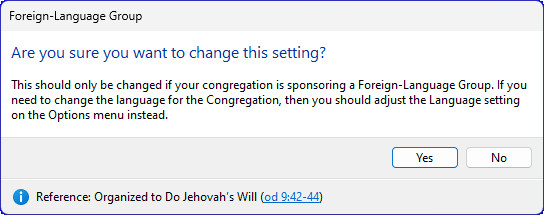
Figure 9. The Foreign‑Language Group confirmation dialog.
If a Foreign‑Language Group is selected, the confirmation window explains the purpose of the setting and provides a reference link for further guidance.
For more details, see the Foreign-Language Group mode help topic.
Navigation
- Parent topic: Using Meeting Schedule Assistant
- Previous topic: Calendar
- Next topic: Assignment Schedules