
Outlook Calendar
The Outlook tab lets you connect Meeting Schedule Assistant to your Microsoft account so that your meeting and duty assignments can be synchronised directly to an Outlook calendar. This integration ensures your schedule stays up to date across devices.
Once connected, you can choose which calendar to use, decide how synchronisation behaves, and control the visibility of events created in your Outlook calendar. The following options explain how Meeting Schedule Assistant interacts with your Microsoft account.
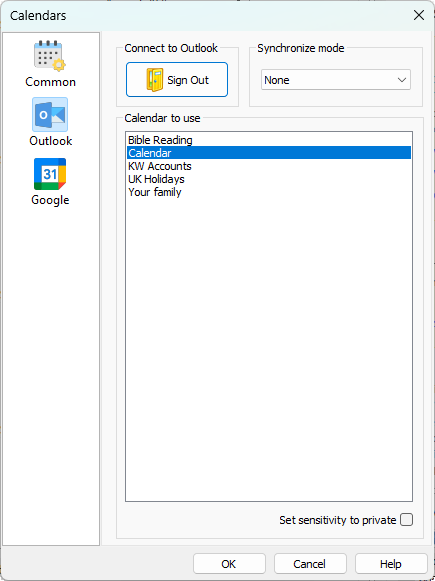
Figure 154. The Outlook Calendar settings window
How to Access
You can access this feature in two ways:
- Options — Calendars
- Toolbar — Calendars
After opening the Calendars window, select the Outlook tab.
Connect to Outlook
Before you can synchronise your schedule, you must grant permission for Meeting Schedule Assistant to access your Microsoft account.
- Click Sign In.
- A Microsoft sign‑in window will appear.
- Complete the authentication process.
(See the dedicated Authorisation topic for more details.) - Once connected, your available calendars will be listed.
- You may disconnect at any time by clicking Sign Out.
⚠️ Important: Signing out does not remove the application from your online Microsoft profile. To fully revoke access, you must sign in to your Microsoft account online and remove the permission manually.
Synchronization Mode
Choose how Meeting Schedule Assistant updates your Outlook calendar:
- None — Disables calendar synchronisation.
- Automatic — Updates your calendar automatically whenever you save a Sound Rota Report (SRR) or Meeting Workbook (MWB) schedule.
- Prompt — Asks each time you save a report whether to send updates to your calendar.
Calendar to Use
After signing in, you will see a list of calendars associated with your Microsoft account.
Select the calendar you want Meeting Schedule Assistant to use. All meeting and duty events will be added to this calendar.
Set Sensitivity to Private
This option controls how your events appear to others when viewed in Outlook.
If you are using Outlook.com, the privacy setting appears similar to this:

Figure 155. Outlook.com event editor showing the Private checkbox used to hide event details.
Setting events to Private hides details from others who have access to your calendar.
Related Topics
- Outlook Authorisation (child topic)
Navigation
- Parent topic: Calendars
- Previous topic: Common
- Next topic: Google Calendar