Stopwatch
The Stopwatch is a small timer window you can keep open while you carry on using Meeting Schedule Assistant. It never blocks the rest of the program, it follows your light or dark appearance setting, and it can stay on top of other programs such as Zoom.
It has two modes:
- Stopwatch counts up from 00:00, for timing anything open-ended.
- Countdown counts down from a set time, changes colour as time runs out and keeps counting if a part runs over. When it is opened from the meeting editor, you can pick a part of the meeting and its allotted time is loaded for you.
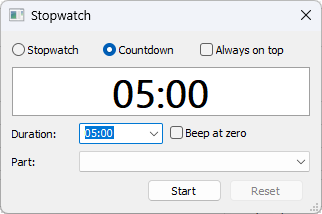
Figure 199. The Stopwatch window
Opening the stopwatch
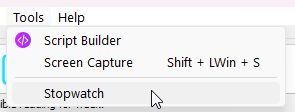
You can open the stopwatch from two places. There is only ever one stopwatch, so opening it again just brings the existing window to the front with its time intact.
|
Where |
Menu |
What you get |
|
Main window |
Tools → Stopwatch |
Stopwatch and countdown. No meeting parts, because no schedule is open. |
|
Meeting editor |
Tools → Stopwatch |
Everything, plus the Part list for the week you have selected. |
If the stopwatch is already open from the main window when you open the meeting editor, the editor takes it over automatically. It stays above the editor, the Part list fills in, and your time is not affected.
The stopwatch window
From top to bottom, the window has the mode choice, the large time display, the countdown settings and the buttons.
|
Control |
What it does |
|
Stopwatch / Countdown |
Chooses the mode. Changing mode resets the timer. |
|
Always on top |
Keeps the window above every other program, not just Meeting Schedule Assistant. |
|
Time display |
Shows the time in large digits. It grows when you make the window bigger. |
|
Duration |
Countdown only. The time to count down from. |
|
Beep at zero |
Countdown only. Plays one beep when the countdown reaches 00:00. |
|
Part |
Countdown from the meeting editor only. Lists the timed parts of the selected week. |
|
Start / Pause / Resume |
Starts the timer, pauses it, and carries on from where you paused. |
|
Reset |
Puts the timer back to the start. Available once the timer has been used. |
While the timer is running, the mode, Duration and Part are greyed out. This stops an accidental click or mouse-wheel scroll from resetting a part halfway through. Pause the timer if you need to change them.
Using stopwatch mode
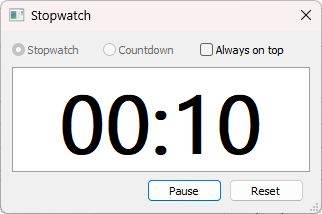
Stopwatch mode counts up, and shows hours once it passes 59:59 (for example 1:02:15).
- Select Stopwatch at the top of the window.
- Click Start. The time counts up from 00:00.
- Click Pause to stop the clock. Click Resume to carry on from the same time.
- Click Reset to go back to 00:00.
Using countdown mode
Countdown mode counts down from a time you choose, warns you as the end approaches and shows how far a part has run over.
Setting the time
Choose a time from the Duration list (1 to 60 minutes), or type your own and press Enter. Any of these formats work:
|
You type |
Countdown from |
|
4 |
4 minutes (04:00) |
|
2:30 |
2 minutes 30 seconds |
|
1:00:00 |
1 hour |
The longest countdown is 9:59:59. If the stopwatch doesn't understand what you typed, it puts the previous time back. Changing the time resets the countdown.
Timing a part of the meeting
When you open the stopwatch from the meeting editor, the Part list shows each timed part of the selected week, numbered as in the schedule, with its allotted time. For example, 3. Bible Reading (04:00).
- Choose the part from the Part list. Its time is loaded into Duration and the countdown resets.
- Click Start when the part begins.
- When it ends, click Pause (or Reset), then choose the next part.
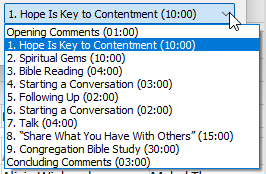
Figure 202. Choosing a meeting part
The list follows the editor: select a different week and the parts update. Songs and the weekend meeting are not included.
Colours and overrun
|
Display |
Meaning |
|
Normal colour |
Plenty of time left. |
|
Amber |
30 seconds or less to go. |
|
Red, with a + sign |
Time is up. The display keeps counting the overrun, for example +00:12 means 12 seconds over. |
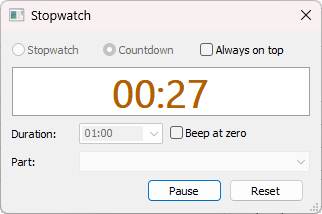
Figure 203. Under 30 seconds left
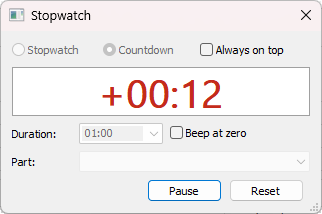
Figure 204. 12 seconds over time
The countdown does not stop at zero, so whoever is timing can see exactly how far over a part went. Tick Beep at zero if you also want a single beep when time runs out.
Window options and keyboard shortcuts
Always on top. Tick this to keep the stopwatch visible above every program, which is useful if you are also running Zoom or a media player. Without it, the stopwatch stays above Meeting Schedule Assistant but other programs can cover it.
Size and position. Drag the window's edges to resize it; the digits scale to fill the space, so you can make it large enough to read from across the room. The stopwatch remembers where you left it and how big it was.
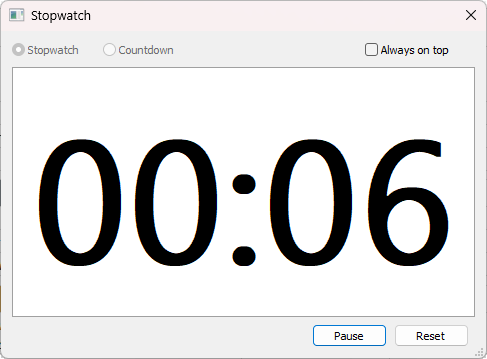
Figure 205. Resized for easy reading
Keyboard shortcuts (when the stopwatch window is active):
|
Key |
Action |
|
Space |
Start, pause or resume |
|
R |
Reset |
|
Enter (in the Duration box) |
Use the time you typed |
|
Esc |
Close the stopwatch (same as the X button) |
When the stopwatch is open from the meeting editor, the editor's own keyboard shortcuts still work while the stopwatch is active.
The stopwatch also remembers your mode, last duration, Always on top and Beep at zero settings for next time.
Closing the stopwatch
Close the stopwatch with the X button or Esc. If the timer is idle, it closes straight away. If the timer is running, or paused with time on it, you are asked Close the stopwatch? first, because closing stops and resets the timer. Choose Yes to close or No to keep timing.

Figure 206. Closing while the timer is in use
When the meeting editor closes
Closing the meeting editor never loses a timer that is in use.
|
The stopwatch was opened from |
Timer in use? |
When you close the editor |
|
The main window |
Either |
The stopwatch stays open and returns to the main window. |
|
The meeting editor |
Yes (running or paused) |
The stopwatch stays open and moves to the main window. The time carries on. |
|
The meeting editor |
No |
The stopwatch closes with the editor, and opens again next time you open the editor (see below). |
Reopening with the meeting editor
If the stopwatch was showing when you closed the meeting editor, it opens again automatically the next time you open the editor. It appears on top of the editor with the Part list ready, and the editor keeps the keyboard focus so you can carry on typing.
If you don’t want it to reopen, close the stopwatch (X or Esc) before you close the editor. The editor then remembers that it was closed and leaves it alone next time.
Only the window is restored. The timer starts from the beginning, with your remembered mode, duration, Always on top and Beep at zero settings.
Once it is back with the main window, the Part list is hidden, because there is no schedule open.
Questions and troubleshooting
I can't change the Duration, Part or mode. The timer is running. Click Pause first.
The Part list is missing. It only appears in countdown mode, and only when the stopwatch is open from the meeting editor. Switch to Countdown, or open the stopwatch from the editor's Tools menu.
The Part list is empty. The selected week has no midweek meeting (for example, an assembly or convention week), or no week is selected.
A part's time looks wrong. The times come from the schedule itself. Correct the time in the meeting editor; the Part list picks up the change the next time you open it.
The stopwatch went behind another program. Tick Always on top.
Space doesn't start the timer. Space presses whichever button or tick box has the focus, and does nothing while you are typing in the Duration box. Click the Start button first.
The stopwatch appeared on its own. It was showing when you last closed the meeting editor. Close it before closing the editor and it will stay closed next time.
Navigation
- Parent topic: Tools Menu
- Previous topic: Script Builder